Laptop guide
Windows Laptop Won’t Start: A Clear Troubleshooting Guide
Separate power, display and startup problems when a Windows laptop appears completely dead.
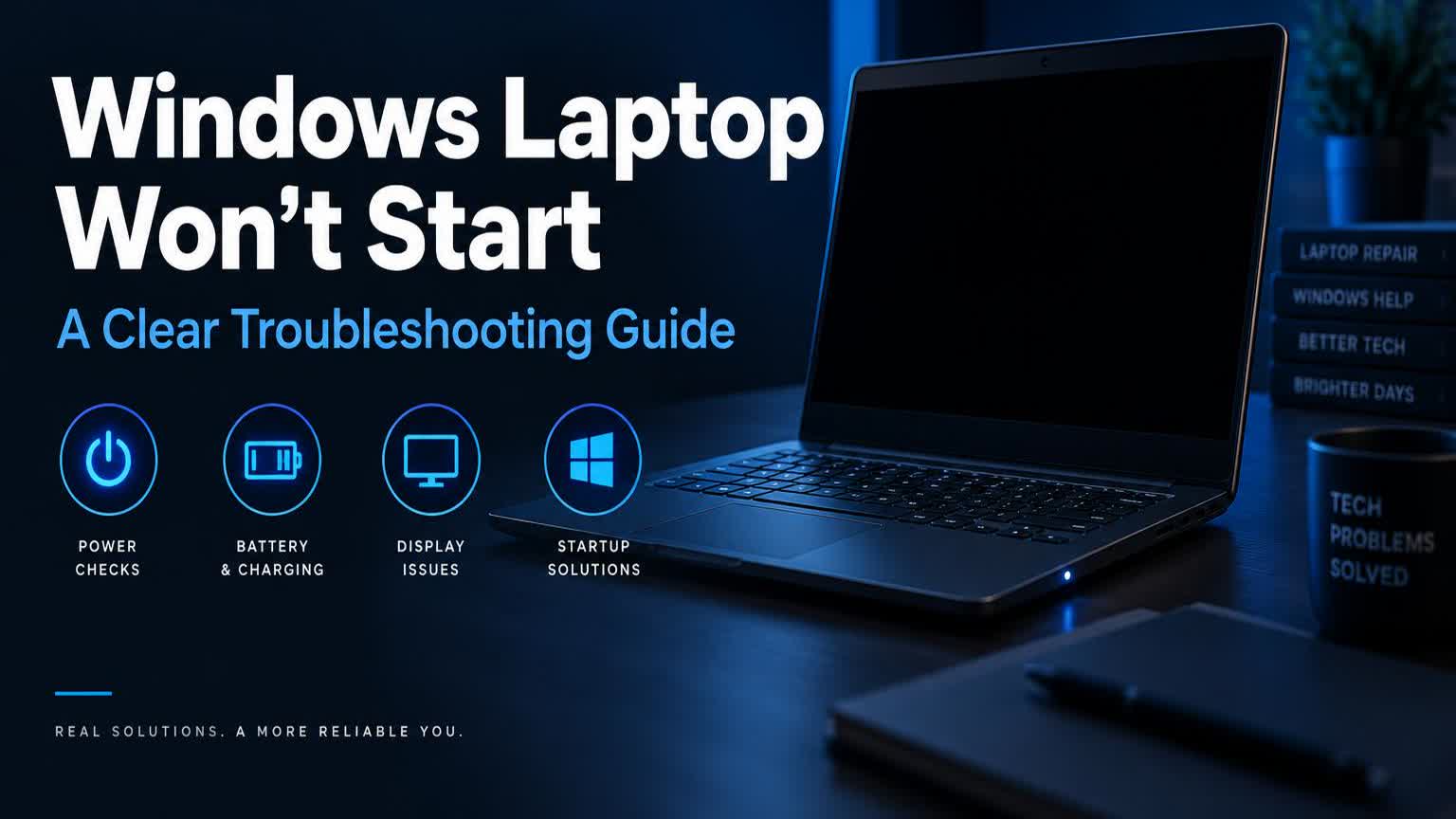
A laptop that appears dead may have a charger, battery, display, memory or mainboard fault. Lights and sounds provide useful clues.
What the symptoms can mean
No lights with a known-good charger suggests a power-path issue. Fan noise with a black display can point to the screen, memory or graphics rather than total power failure.
What to do next
Disconnect accessories, hold the power button for about 15 seconds, reconnect power and try once. Avoid repeated power cycling if there is a burning smell, liquid exposure or unusual heat.
How a no-start laptop is diagnosed
The technician works outward from power: charger output is measured, the charging path and battery are tested, then memory is reseated and the display tested with an external monitor to separate screen faults from board faults. Each step narrows the problem — a laptop that beeps, lights up or shows an external picture is a very different repair from one that is completely silent.
Your files are usually safe
A laptop that will not start is rarely a storage problem, so photos and documents are typically intact. If the drive is healthy, files can be read out during the repair or copied to a new machine afterwards. This is also the moment to set up automatic backups, so a future hardware failure costs no data.
When to arrange a diagnosis
If the problem continues after safe basic checks, a proper diagnosis is the best next step. It helps separate a replaceable part from a deeper board, power or software issue before any repair is approved.
Common questions
Could it just be a dead charger?
Very often, yes. A failed adapter or a broken cable is one of the most common causes of a seemingly dead laptop, which is why the charger is tested first.
Can I recover my files myself?
If the laptop starts on an external screen, yes. If it stays completely dead, leave the drive where it is — removing storage from a modern laptop often means opening the whole machine.